

Why this keeps showing up in your inbox
You open your email and see “Your Norton LifeLock subscription is expiring today.” The logo looks polished. The clock is ticking. But before you click, pause.
Cybercriminals routinely impersonate trusted security brands with look-alike emails designed to scare you into handing over money or credentials. Norton’s own guidance notes a rise in “subscription renewal” scam emails that mimic official formatting to trick consumers.
This quick guide shows how these scams work, the fastest ways to tell real from fake, and what to do if you already clicked so you can shut down the con with confidence.
How the con works (and why it fools smart people)
Scammers send emails that look like legitimate Norton or LifeLock notices: urgent subjects (“Your account will be suspended”), fake invoices for $200-$700, and links or phone numbers to “cancel” or “update payment.” The goal is the same every time: steal your card details, passwords, or install malware. Reports across the industry describe near-perfect branding, spoofed logos, and realistic invoice PDFs that can trip up even tech-savvy users.
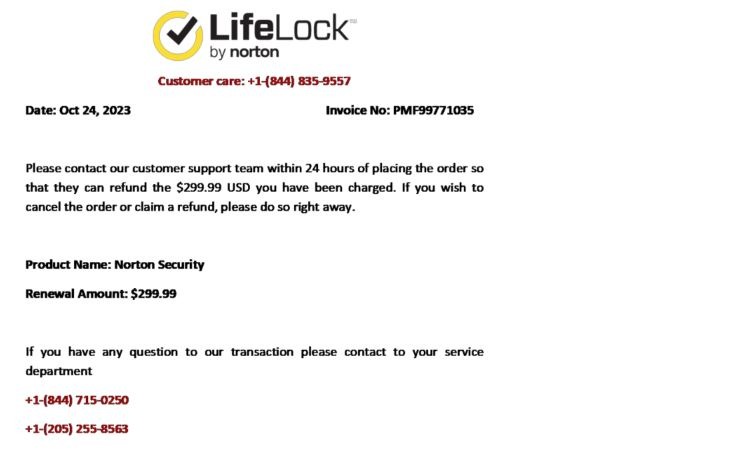
Norton documents these phishing waves and asks users to report suspicious messages so they can investigate and block campaigns more quickly. If you’ve received one of these emails (or if you wind up receiving one), click here to report it to Norton.
Real vs. fake: a 60-second checklist
Use this single pass/fail list before you click anything:
- Verify the sender. Authentic Norton emails come from approved Norton domains (for example, @norton.com). Norton’s support page also lets you cross-check domains and explains how to forward suspicious messages for review.
- Don’t trust links. Instead of clicking buttons in the email, open a new tab and sign in to your account via a saved bookmark or by typing the URL yourself. If there’s really an issue, you’ll see it in your account dashboard.
- Look for personalization. Real account notices typically include your name or specific account details. “Dear Customer” is a red flag.
- Check the writing and layout. Awkward grammar, blurry logos, and generic formatting are common giveaways.
- Hover before you click. Inspect the link target; phishing URLs often contain random strings or misspelled brand names. If it looks off, it is.
Brown University’s IT department has published multiple examples of the Norton scam email. You can check these out by clicking here.
Clicked already? Do this now
Act quickly to limit damage:
- Disconnect and scan. If you downloaded a file or installed anything, go offline and run a full system scan with your verified security software.
- Change passwords and monitor accounts. Update your Norton/identity-protection login and any reused passwords. Watch your bank and credit card activity for unusual charges.
- Report the phishing attempt. Forward the suspicious email as an attachment to Norton’s reporting mailbox (Norton support references spam@norton.com; some Norton resources also list spam@nortonlifelock.com). Then submit a report to the FTC at ReportFraud.ftc.gov so law enforcement can track the campaign
- Know what legit companies don’t do. Real security brands won’t demand payment or sensitive info through email links. When in doubt, navigate to the account yourself.
The bottom line
Even top cybersecurity brands get impersonated. Your best defense is a calm, methodical check: confirm the domain, avoid in-email links, and verify inside your account. Bookmark official sites, enable two-factor authentication, and keep your guard up around urgent emails.
When in doubt, don’t click out.