

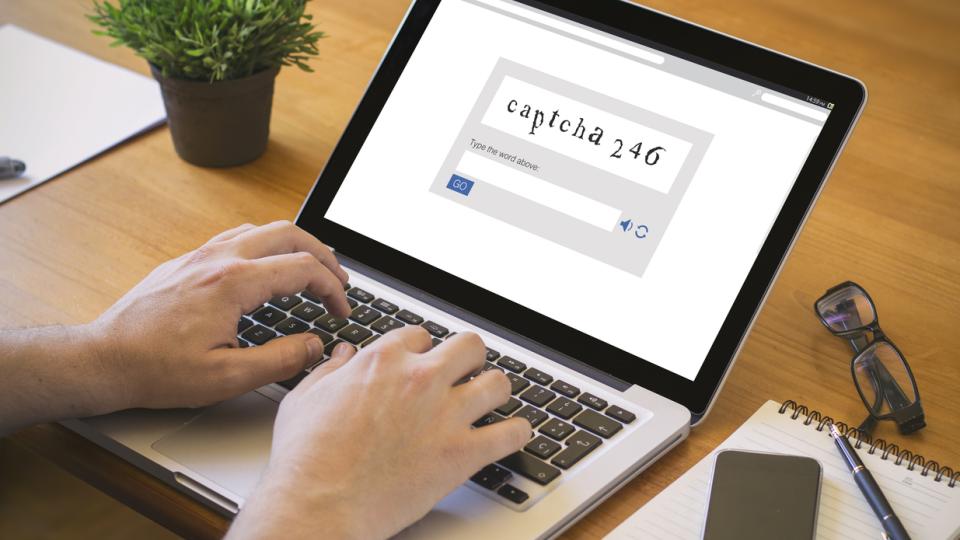
CAPTCHAs have become part of the scenery online. You’re shopping, checking an account, reading an article, or trying to get past a login screen, and suddenly you’re asked to prove you’re human. Most people don’t pause over it anymore, which is exactly why scammers have started dressing malware in that familiar little costume.
A recent FTC warning describes a fake CAPTCHA scam that looks like a routine security check but steers people into running harmful commands on their own devices. In this guide, we’ll walk through how the scam works, what separates a real CAPTCHA from a dangerous one, and what to do fast if you think you followed the wrong prompt.
The Trap Looks Ordinary at First
Anyone who has used the internet for more than 10 minutes has been presented with a CAPTCHA. You know them as mildly annoying mini-games that grant winners access to whatever website you’re trying to visit. It might be checking a “not a robot” box, or having to type in distorted letters (sometimes multiple times, if you’re me), or selecting images that match a prompt.
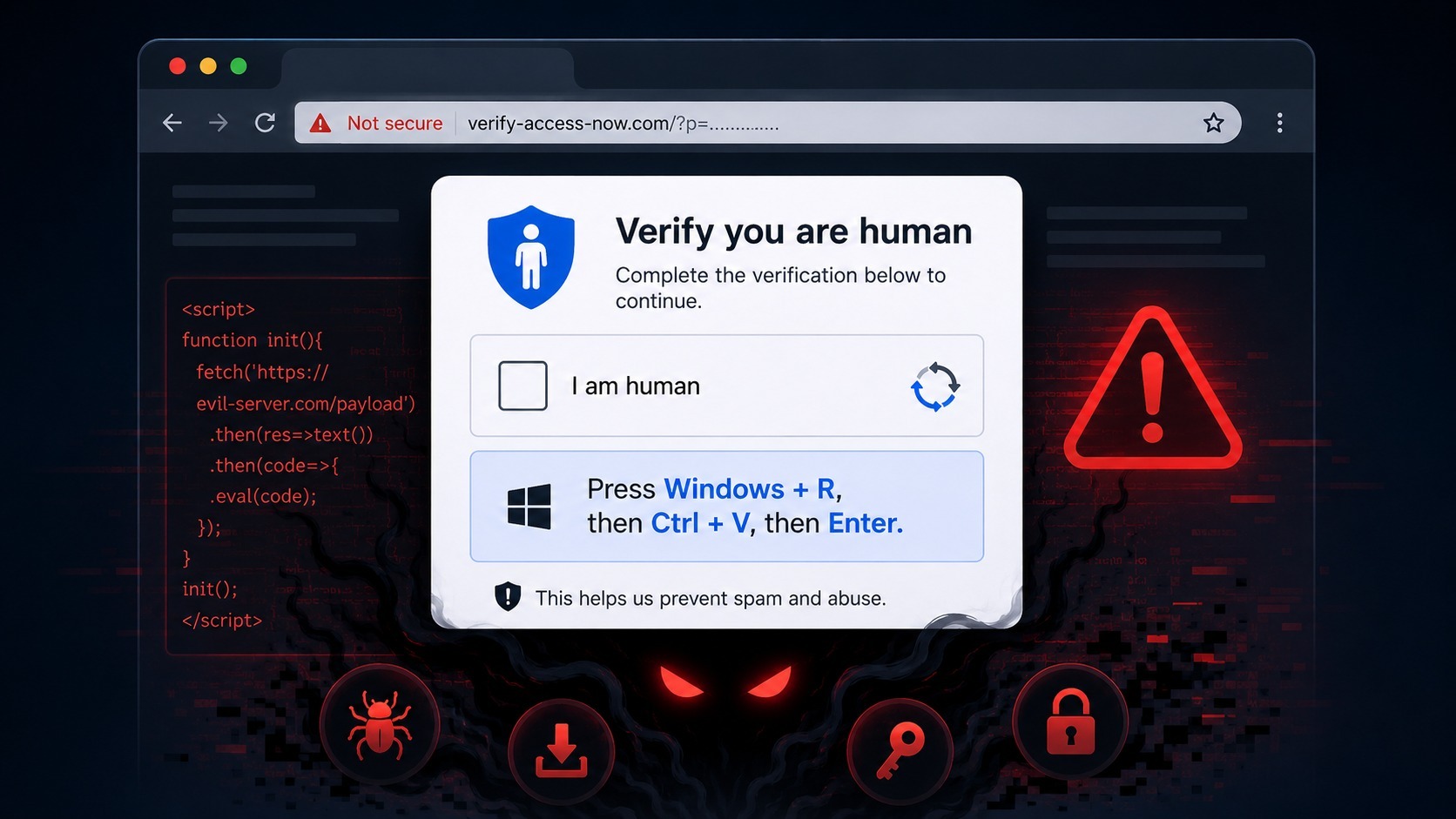
The fake version borrows that visual language, but adds a strange instruction. Instead of clicking images or typing a short code, the page tells you to press keys on your computer. The FTC alert describes prompts that may ask Windows users to press Windows + R, then Ctrl + V, then Enter.
Though it’s framed as a “security verification”, those commands can open your computer’s system dialogue box, paste hidden text, and then run a program you never meant to install.
The scam is dangerous for a lot of reasons, especially given how relatively new it is and how straightforwardly it presents itself. You won’t see any suspicious “Download” buttons or misspelled emails. Instead, it just hands over simple, step by step instructions. For anyone without prior knowledge of this type of scam, especially those without technical computer knowledge, it can be a recipe for disaster.
The Red Flag Is Outside the Browser
The easiest way to think about this scam is simple: a CAPTCHA will not ever need control of your computer.
A legitimate CAPTCHA may test your attention, your mouse clicks, or your ability to recognize text and images. It should not ask you to open a Run box, paste commands, change settings, install software, allow a download, or use keyboard shortcuts outside the webpage.
Once a prompt asks you to interact with your operating system, you’ve left normal CAPTCHA territory.
That red flag can be surprisingly easy to miss when you’re rushing. Scammers count on the dull familiarity of security pop ups, especially when you’re just trying to reach a site quickly. The wording may sound polished and the page may look clean, but the trap is still sitting right there in plain sight.
It’s bold, but it works. Unfortunately.
What Malware May Be After
The FTC warning explains that the malware installed through a fake CAPTCHA can be used to steal sensitive information, like email login details, banking credentials, or other account data. For everyday consumers, that can mean far more than a sluggish computer or a weird, inappropriate pop up.
Email access opens the door to password resets. Banking credentials put money at risk. All those saved browser passwords? Yeah, now the scammers have an actual treasure map of your digital life.
A fake CAPTCHA is a small interaction that can cause big damage if the malware scrapes enough account information before you notice.

What To Do If You Followed the Prompt
If you think you typed or ran commands from a fake CAPTCHA, you need to move quickly.
Follow these steps:
- Disconnect the affected device from the internet.
- Run a trusted security scan.
- Remove anything suspicious.
- Change important passwords from another device,
- Turn on two factor authentication.
- Report the incident to the FTC at ReportFraud.ftc.gov.
You’ll want to start with email, banking, shopping, payment, and cloud storage accounts, since those are often the keys to everything else. Watch for password reset notices you didn’t request, unfamiliar login alerts, new forwarding rules in your email, or strange transactions.
If a financial account may have been exposed, contact the bank or card issuer directly using the number on the back of your card or the official website.
A Better Habit for Strange Verification Screens
The safest response to an unexpected CAPTCHA is a little suspicion with the brakes on. Don’t follow instructions just because a page claims it’s checking your identity. Close the tab if the request seems odd, especially if it asks for keyboard shortcuts, downloads, permissions, or commands.
If you want to try and reopen the site again, type in the address yourself instead of returning through the same link. Keep your browser, operating system, and security software updated, and avoid clicking through pop ups that appear while browsing unfamiliar pages.
These small habits won't necessarily make the internet a safer place, but they will help keep these particular bad guys at bay.
Trust Your Doubt Before You Trust the Box
Scammers are getting better at copying the little rituals people already accept online. A CAPTCHA feels harmless because we’ve all seen thousands of them. Familiarity is the lure.
If a verification screen asks you to prove you’re human by running commands on your device, stop right there. Real security checks don’t need that kind of access. When a prompt just feels off, close it. Then scan your device to see if anything downloaded. Regardless of whether you find anything or not, go ahead and report any suspicious activity.
Stay alert, stay safe, stay smart. It’s a digital jungle out there.